Chocolatey is awesome

If you have not heard of chocolatey, you are in luck! I will introduce you. Chocolatey is a package management tool for Windows, its a lot like apt or yum if you have used linux. With Chocolatey you can leverage powershell scripts to deploy and update apps on your local PC or remote servers or workstations. There site is here and goes into a lot more detail of how it all works: https://chocolatey.org/ In this post I will show you a few ways that I use Chocolatey to make my life easier.
First, the basics, Lets install it:
Install Chocolatey
This script will check to see if Chocolatey is installed by simply running the “choco” command to see if it returns anything. If it does not it will then attempt to install Chocolatey from their website.
try {
	invoke-command -scriptblock {choco} -erroraction stop
	write-host "Has Choco. all is good!"
}

catch {
	Write-Host "Needs Choco.  Trying install..."
	try {
		invoke-command -scriptblock {Set-ExecutionPolicy Bypass -Scope Process -Force; Invoke-Expression ((New-Object System.Net.WebClient).DownloadString('https://chocolatey.org/install.ps1'))} -ErrorAction Stop
	}
	catch {
		write-host "Install Failed"
	}

}
But how do you search for apps!?
Find Choco apps
There are a couple ways to do this.
First, you can go to the website and look through the gallery here: https://chocolatey.org/packages
Second, you can use command line to search for a specific app:
choco search appname
or
choco list appname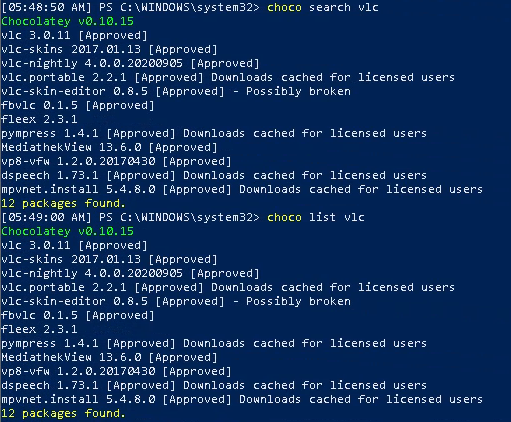
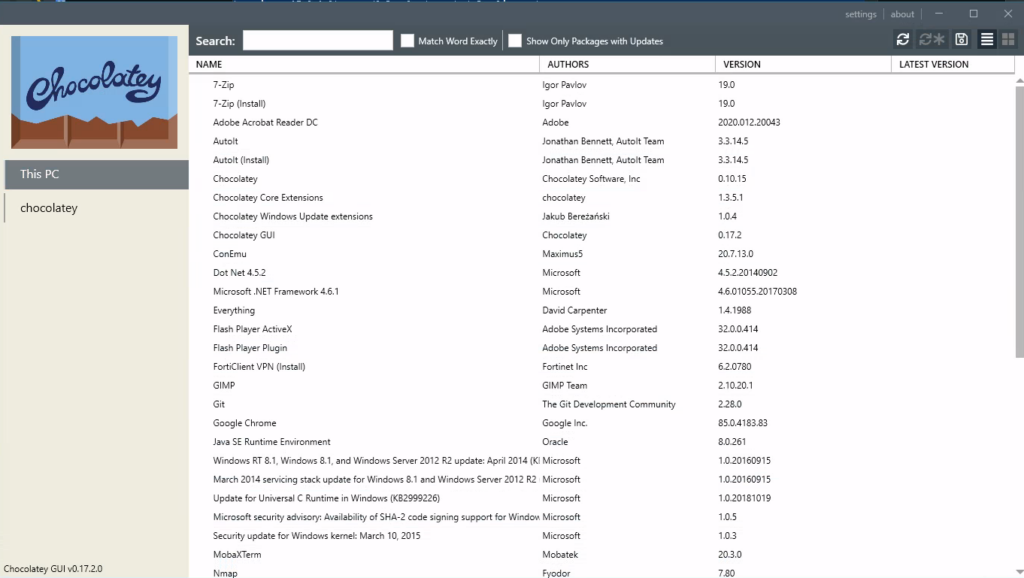
Lastly you can install the chocolateygui app and use it to search. You can install it with this:
install chocolateygui -yOnce installed you will find it in your start menu. Simply open it and there is a nice search to look for new apps and update what you already have installed.
Ok, found and app. Lets install it.
Install Choco apps
Installing choco apps is just as easy as the searching. You can install one app at a time or multiple. You can always use the ChocolateyGUI app from the previous section but I want to show you the command line ways. Here are a couple ways to do it:
One at a time:
choco install packagename -yNotice the -y at the end. If you don’t add that you will need to accept the install. Another switch that can be added is -f. If you add that switch it will force install the app even if its installed. Meaning it will reinstall what is already installed. I have mixed luck with that so keep it in mind that it depends on the app if you can use the -f switch.
Multiple apps at a time in one line:
choco install package1 package2 package3 -yThis method works fine but I have found that if you have more than a few apps the command gets a little long. I have another method for installing multiple apps using an array to hold the package names instead. It just looks better when you have a larger list of apps and is easier the change out apps as needed. Here is the one is use:
if (!([Security.Principal.WindowsPrincipal][Security.Principal.WindowsIdentity]::GetCurrent()).IsInRole([Security.Principal.WindowsBuiltInRole] "Administrator")) { Start-Process powershell.exe "-NoProfile -ExecutionPolicy Bypass -File `"$PSCommandPath`"" -Verb RunAs; exit }

#List packages you want to install
$packages = (
    "chocolateygui",
    "googlechrome",
    "notepadplusplus",
    "vlc",
    "winscp",
    "nmap",
    "autoit",
    "7zip",
    "putty",
    "git",
    "vscode",
    "openvpn",
    "vim",
    "mobaxterm",
    "adobereader",
    "rsat",
    "wireshark",
    "mousewithoutborders",
    "forticlientvpn",
    "microsoft-teams",
    "Office365Business"
)

#Loop through the packages
foreach ($package in $packages){

   #Instal each package and force a reinstall if its already there
   choco install $package -y -f

}
As you can see you can pretty much get all of your normal apps installed in one script. That top line is something I add to a lot a scripts that I plan on running from the actual .ps1 file. The line will check to see if the powershell session is running as admin and will reopen it as admin if not.
Final thing, updating!
Update Choco apps
There are a few ways to do this as well. Again you can use the ChocolateyGUI app to update one or all of the apps but here are the powershell ways:
Update one app:
choco upgrade packagename -yUpdate all apps:
choco upgrade all -yThis will upgrade all the apps that you have installed via chocolatey. One of my favorite commands!