Powershell Connection Examples

In this post I’m going to show you a few different ways to connect to thing using Powershell. I will make other posts that go into more detail and explain each one but this is more of a reference post. I will probably update this post in the future to include more but this current list includes Powershell Connection Examples for: Active Directory (on-prem), AzureAD, Exchange (on-prem), Exchange Online, vCenter and SCCM. Like all my posts I’m not claiming these are the only ways but these are the ways I use and they work. For these you may need to set you execution policy for these to work:
Set-ExecutionPolicy -ExecutionPolicy BypassActive Directory (On-Prem)
#set Variable for which Domain Controller to connect to
$Domain_Controller = "MyDC1"

#Check for Creds and ask for them if they aren't found
if (!($Creds)) {$Creds = get-credential -Message "Enter your Domain Admin Creds"}

#Connect to Domain Controller and import a Active Directory Session
$session = New-PSSession -ComputerName $Domain_Controller -Credential $creds
Invoke-Command $session -Scriptblock { Import-Module ActiveDirectory }
Import-PSSession -Session $session -module ActiveDirectory
Test Command
Get-ADuser username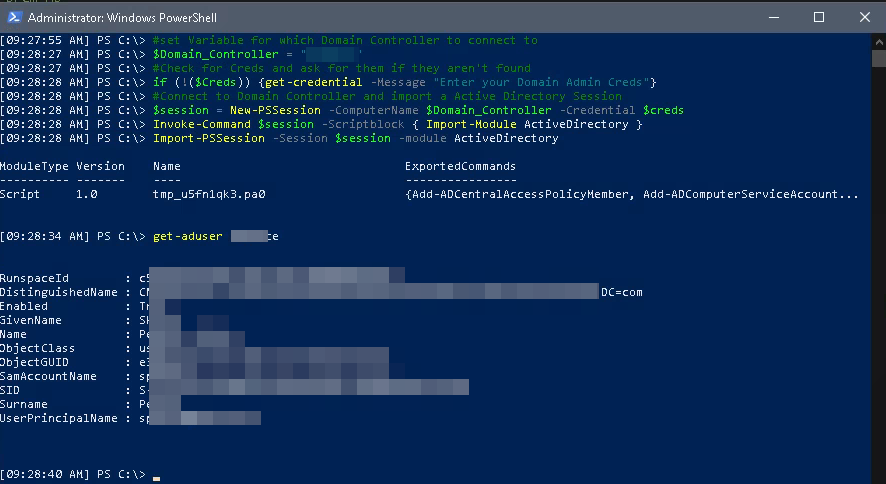
Example of Active Directory Connection with Powershell
AzureAD (MSOL)
For this you need to have the the MSOnline module installed you can get it by running:
Install-Module MSOnline -verboseThere are two ways to run this and it depends on if you have MFA setup and Trusted locations:
Option 1 – If you do NOT have MFA setup OR you have MFA setup but you are logging in from a “Trusted Location”
#Check for Creds and ask for them if they aren't found
if (!($365Creds)) {$365Creds = get-credential -Message "Enter your Office365 Admin Creds"}

#Make the connection
Connect-MsolService -Credential $365Creds
Option 2 – If you have MFA on and aren’t at a “Trusted Location”
Connect-MsolServiceTest Connection
Get-MsolUser -UserPrincipalName [email protected]
Example of Azure AD Connection with Powershell
Exchange (On-Prem)
#Set Exchange Server Name
$Exc_Server = "ExchangeServerName"

#Check for Creds and ask for them if they aren't found
if (!($Creds)) {$Creds = get-credential -Message "Enter your Domain Admin Creds"}

$Session = New-PSSession -ConfigurationName Microsoft.Exchange -ConnectionUri http://$Exc_Server/PowerShell/ -Authentication Kerberos -Credential $creds

Import-PSSession $Session
Test Command
Get-Mailbox username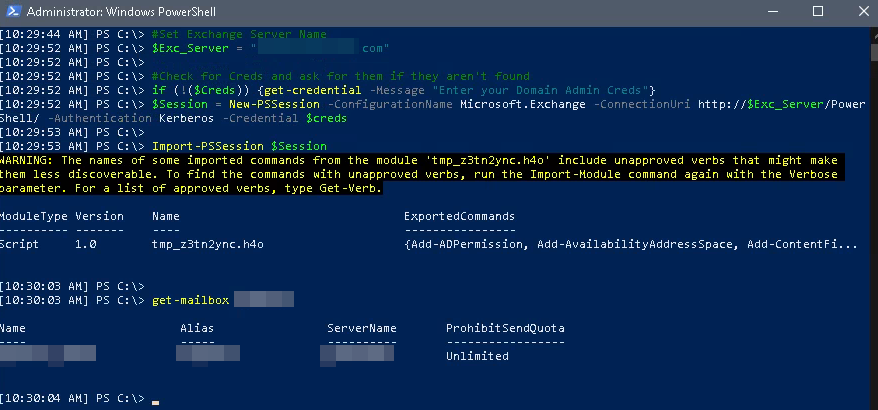
Example of Exchange Connection with Powershell
Exchange Online
For this you need the ExchangeOnlineManagement module installed. To install it run:
Install-Module ExchangeOnlineManagementTo connect use this:
Connect-ExchangeOnlineTest Command:
Get-Mailbox [email protected]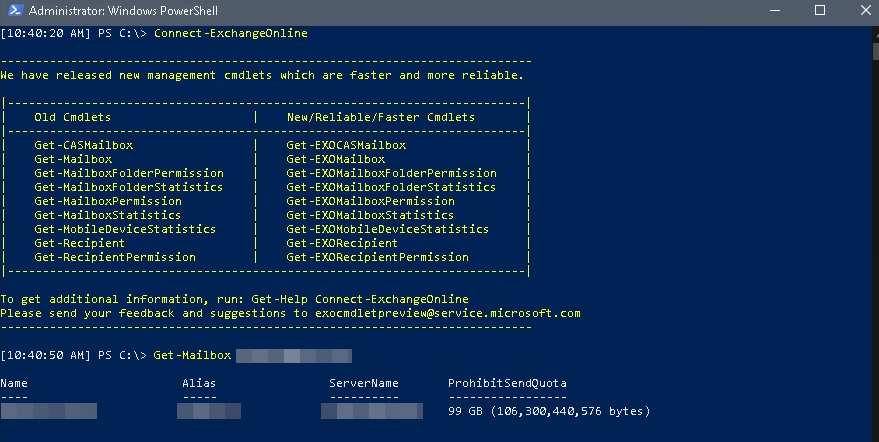
Example of Exchange Online Connection with Powershell
vCenter
For this you need the VMwarePowercli module installed. to install run:
Install-Module VMware.PowerCLI -AllowClobberTo connect:
If you do not have an SSL certificate on your vCenter you will need to set it to ignore your self signed cert with
Set-PowerCLIConfiguration -InvalidCertificateAction ignoreNext set your vCenter server with this command. Change vCenterServerName to match your vCenter server
#Set vCenter Servername
$vCenter_Server = "vCenterServerName"
Here is the actual connection commands, not need to change anything here. It will bring up a credential box. Enter your vCenter creds in domain\username format.
#Check for Creds and ask for them if they aren't found
if (!($Creds)) {$Creds = get-credential -Message "Enter your vCenter Admin Creds in domain\username format"}

Connect-VIServer -server $vCenter_Server -Credential $creds
Test Command:
get-Cluster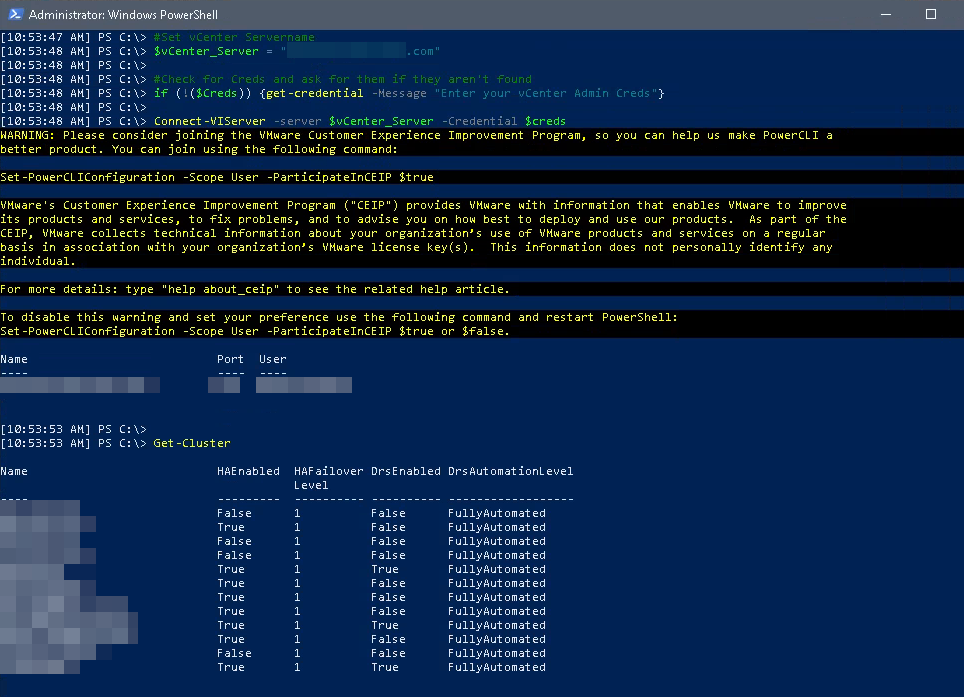
Example of vCenter Connection with Powershell
SCCM
The last Powershell Connection Example I have for you is SCCM. For this one you need to have the SCCM console installed locally or run this from the SCCM server. The console is specific to the version of SCCM you are running, you can get the console install from here \SCCMSERVERNAME\SCCMConsoleInstaller\consoleinstaller.exe
To connect:
There are a few things to change in the below. Change SITENAME to your SCCM site name in both places, and change SCCM_Server_Name with your SCCM server name.
#Check for Creds and ask for them if they aren't found
if (!($Creds)) {$Creds = get-credential -Message "Enter your Domain Admin Creds"}

Import-Module 'C:\Program Files (x86)\Microsoft Configuration Manager\AdminConsole\bin\ConfigurationManager.psd1'
New-PSDrive -Credential $Creds -Name "SITENAME" -PSProvider "AdminUI.PS.Provider\CMSite" -Root "SCCM_Server_name" -Description "Primary site"
Set-Location SITENAME:
Test command:
Get-CMSite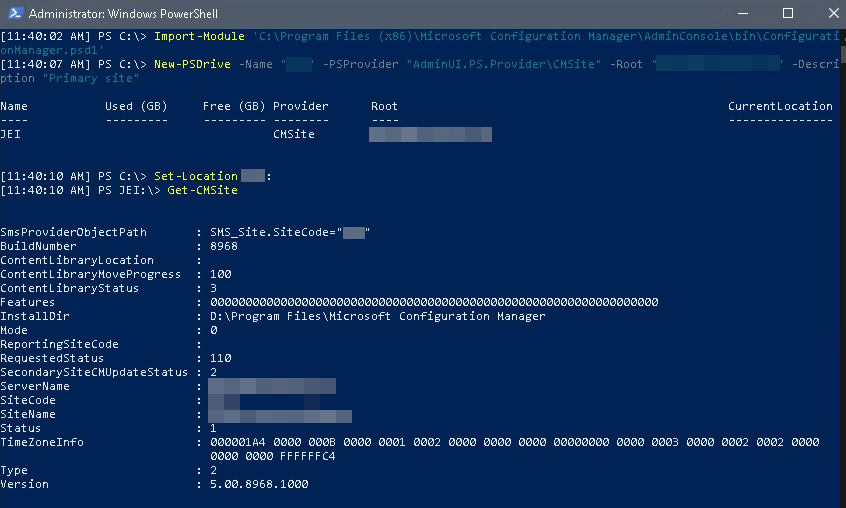
Example of SCCM Connection with Powershell
Azure
Connecting to Azure is similar to AzureAD or Exchange online. First, you need the module. Once it is installed, you can now connect. One important thing to note is this AZ module is newer. If you have used the Azure or AzureRM modules in the past you need to remove them with uninstall-module.
Uninstall AzureRM:
Uninstall-AzureRmInstall Module:
Install-Module az -AllowClobberOnce the module is install you can now connect.
Connect to Azure:
Connect-AzAccountThis will open another window where you can sign into Azure using your credentials.
Test Command:
Get-AzSubscription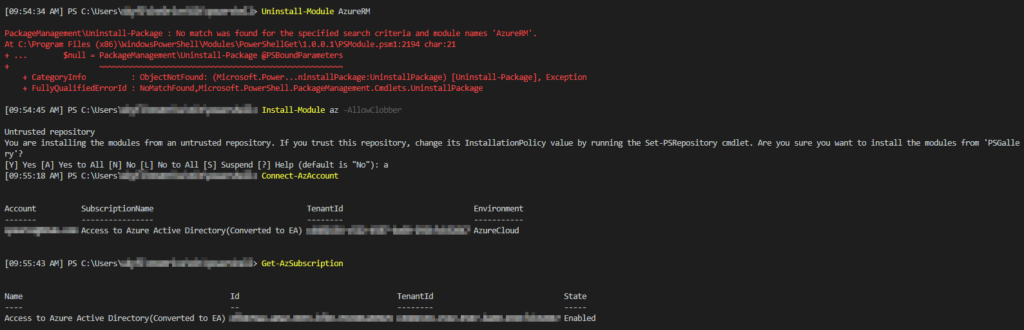
Azure Connection Example