Add local ESXi users
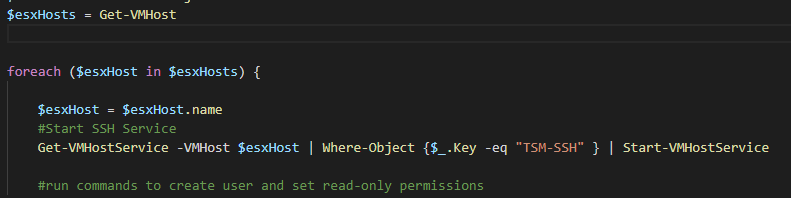
For the most part you can use vCenter and powercli to get almost anything you need done for your virtual environment. However, sometimes you might run into a monitoring or management tool that does not have the ability to talk to vCenter. In this case we need to give the tool a local ESXi account, but we don’t to be handing out root password to automated systems. Adding a local user account can be done through the web ui for each ESXi host. If you have more than a few this could take a while. To solve this we can use our good friend powershell. To do add these users we will need to connect to each host using ssh. I tried just using the built-in ssh that windows/powershell can do but it just didn’t work right. To get over this I used a tool called kitty this is a modified putty that lets you run it from command line. You can use plink as well but I already had kitty available and some code I had written for a different task. Another thing you need before starting is vmware powercli. You can see this post on how to set that up. The code below will connect to vCenter, look for the host(s) we define, then for each of the hosts it will enable ssh via powercli, connect via kitty (ssh) and run our commands to create the user and set read-only permission, finally it will disable ssh.
#Check for Creds and ask for them if they aren't found
if (!($Creds)) {$Creds = get-credential -Message "Enter your vCenter Admin Creds in domain\username format"}

# Connect to vCenter
Connect-VIServer -server yourvCenterIPorName -Credential $creds -force

#get all hosts.  You can use an array here instead, but this will get all of the hosts connected to your vCenter
$esxHosts = Get-VMHost

foreach ($esxHost in $esxHosts) {

    $esxHost = $esxHost.name
    #Start SSH Service
    Get-VMHostService -VMHost $esxHost | Where-Object {$_.Key -eq "TSM-SSH" } | Start-VMHostService

    #run commands to create user and set read-only permissions
.\kitty.exe -kload .\kex.ktx root@$esxHost -pass "ESXiPassword" -cmd '
esxcli system account add -d=''read-only local user'' -i=''username'' -p=''Password'' -c=''Password''
esxcli system permission set -i=''username'' -r=''ReadOnly''
esxcli system permission list
exit
'


    #Stop SSH Service
    Get-VMHostService -VMHost $esxHost | Where-Object {$_.Key -eq "TSM-SSH" } | Stop-VMHostService -Confirm:$false

}
Remove a local user
If you need to remove the user we can modify the above script a bit to remove the user from all the hosts. That looks like this:
#Check for Creds and ask for them if they aren't found
if (!($Creds)) {$Creds = get-credential -Message "Enter your vCenter Admin Creds in domain\username format"}

# Connect to vCenter
Connect-VIServer -server yourvCenterIPorName -Credential $creds -force

#get all hosts.  You can use an array here instead, but this will get all of the hosts connected to your vCenter
$esxHosts = Get-VMHost

foreach ($esxHost in $esxHosts) {

    $esxHost = $esxHost.name
    #Start SSH Service
    Get-VMHostService -VMHost $esxHost | Where-Object {$_.Key -eq "TSM-SSH" } | Start-VMHostService

#run commands to remove the user
.\kitty.exe -kload .\kex.ktx root@$esxHost -pass "ESXiPassword" -cmd '
 esxcli system account remove -i=''username''
 exit
 '


    #Stop SSH Service
    Get-VMHostService -VMHost $esxHost | Where-Object {$_.Key -eq "TSM-SSH" } | Stop-VMHostService -Confirm:$false

}