Powershell Diagram vCenter
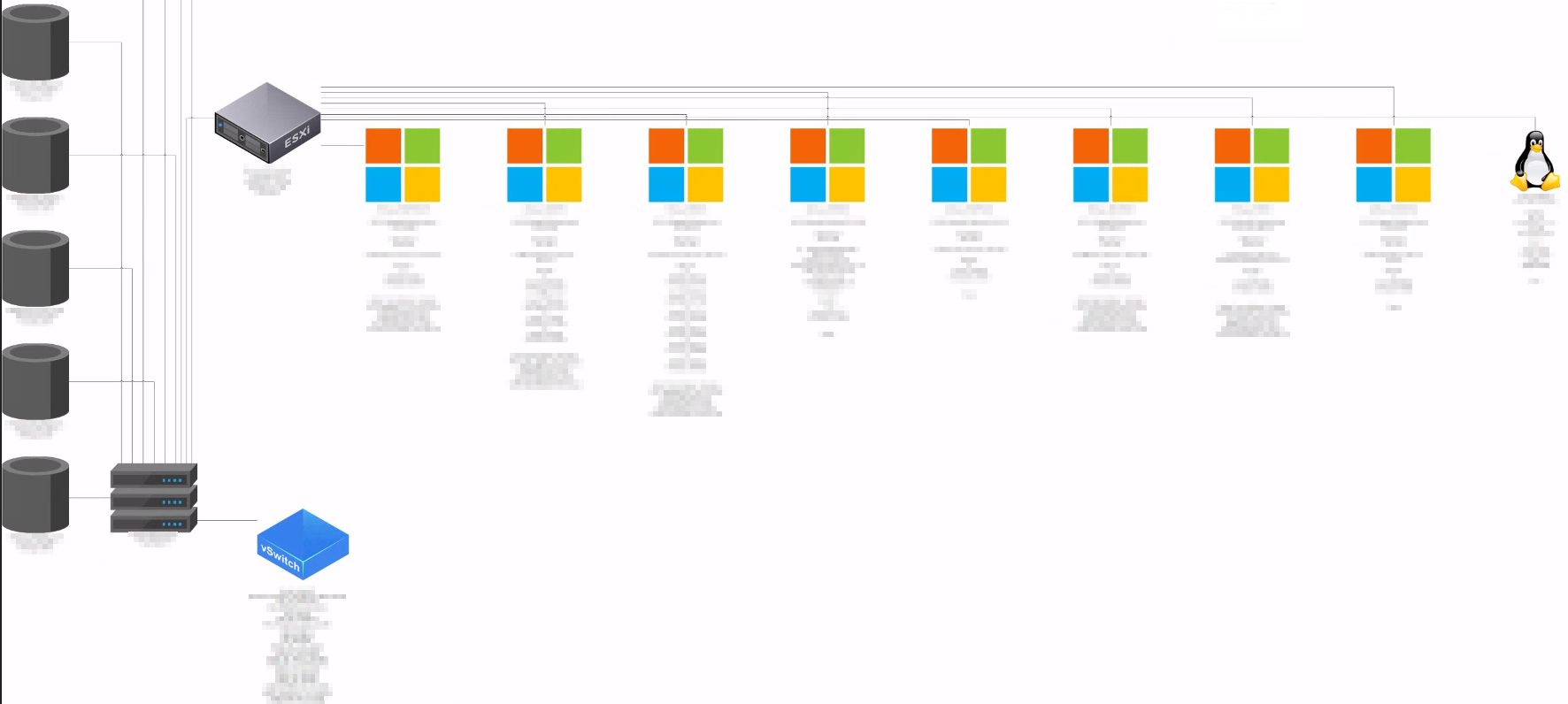
This is a script that I got from someone else but have modified pretty heavily. This will use Powershell to diagram vCenter. This will connect to vCenter, pull a list of clusters and for each cluster it will create a Visio diagram and detail host, datastore and VM info. For this to run you need to have Visio installed. You also need these templates which apparently I’m not allowed to link to but you can find them pretty easy. The two non-standard ones I use are “EUC Visio Stencils 2018” and “Security and Systems Stencil.” You don’t NEED to use mine just make sure you update the section of the script that ties a stencil to a type of system. (its commented in there starting at line 69). The last thing needed is the PowerCLI module installed. You can see how that works here.
Script:
#Check for Creds and ask for them if they aren't found
if (!($Creds)) {$creds = get-credential -Message "Enter your vCenter Creds"}

$vCenter_Server = "vCenter_Server_Name"
Connect-VIServer -server $vCenter_Server -Credential $creds -force
$allclusters = Get-Cluster

foreach ($cluster in $allclusters)
{
$shpFile1 = "EUC Visio Stencils 2018.vss"
$shpFile2 = "Security and Systems Stencil.vssx"
$shpFile3 = "Basic Shapes.vss"

#VISIO Function for the Connection-of-objects
function connect-visioobject ($firstObj, $secondObj)
{
    $shpConn = $pagObj.Drop($pagObj.Application.ConnectorToolDataObject, 0, 0)
    #// Connect its Begin to the 'From' shape:
    $connectBegin = $shpConn.CellsU("BeginX").GlueTo($firstObj.CellsU("PinX"))
    #// Connect its End to the 'To' shape:
    $connectEnd = $shpConn.CellsU("EndX").GlueTo($secondObj.CellsU("PinX"))
}

#VISIO Function for adding the object into the drawing
function add-visioobject ($mastObj, $item)
{
         Write-Host "Adding $item"
        # Drop the selected stencil on the active page, with the coordinates x, y
          $shpObj = $pagObj.Drop($mastObj, $x, $y)
        # Enter text for the object
          $shpObj.Text = $item

        #Resize the object
          $shpObj.Resize(1,150,33)


        #Return the visioobject to be used
        return $shpObj
 }

# Create VI Properties to extract vmtype

New-VIProperty -Name GuestFamily -ObjectType VirtualMachine -ValueFromExtensionProperty 'guest.guestfamily' -Force | Out-Null
New-VIProperty -Name GuestOSType -ObjectType VirtualMachine -ValueFromExtensionProperty 'guest.guestfullname' -Force | Out-Null


# Create an instance of Visio and create a document based on the Basic Diagram template.
$AppVisio = New-Object -ComObject Visio.Application -ErrorAction Stop
$AppVisio.Visible = $false
$docsObj = $AppVisio.Documents
$DocObj = $docsObj.Add("Basic Network Diagram.vst")

# Set the active page of the document to page 1
$pagsObj = $AppVisio.ActiveDocument.Pages
$pagObj = $pagsObj.Item(1)

# Load a set of stencils and select one to drop
$stnPath = [system.Environment]::GetFolderPath('MyDocuments') + "\My Shapes\"
$stnObj1 = $AppVisio.Documents.Add($stnPath + $shpFile1)
$stnObj2 = $AppVisio.Documents.Add($stnPath + $shpFile2)
$stnObj3 = $AppVisio.Documents.Add($shpFile3)

$VirtualMachine = $stnobj1.Masters.item("Virtual Machine (3D)")
$Windows = $stnobj1.Masters.item("Microsoft")
$PoweredOff =  $stnobj2.Masters.item("VM State Saved")
$Linux =  $stnobj2.Masters.item("Linux")
$VirtualAppliance = $stnobj1.Masters.item("3D Virtual Appliance")
$vSphere = $stnobj1.Masters.item("vCenter")
$Clusters = $stnobj1.Masters.item("Cluster")
$VMware_Host=$stnobj1.Masters.item("ESXi Host")
$datastores=$stnobj1.Masters.item("Storage 1")
$vSwitchObject=$stnobj1.Masters.item("vSwtch 3D")
$Network = $stnobj2.Masters.item("Process")
$Switch = $stnobj1.Masters.item("Switch")
$Firewall = $stnobj1.Masters.item("Router 1")
$Rectangle = $stnObj3.Masters.item("Rounded Rectangle")


$allNODES = Get-Cluster $cluster | get-vmhost
$allclusters = Get-Cluster $cluster
$allVMs = Get-Cluster $cluster | Get-VM
$allDs = Get-Cluster $cluster | Get-Datastore


#Set Start Locations of Objects
$x = 1
$y = .5

#DRAW ALL Cluster-NODES
Foreach ($cluster in $allclusters) {
    $y += 0.25
    $VMs_Total = get-cluster $cluster | get-vm | Measure-Object | Select-Object -ExpandProperty count
    $clusterInfo = "Cluster: " + $cluster.Name + "`nTotal VMs: " + $VMs_Total
    $clusterObj = add-visioobject $Clusters $clusterInfo

#Find Datastores and draw them
    Foreach ($d in $allDs) {

            #calculate percent free
            $percentFree = [math]::Round(($d.FreeSpaceGB / $d.CapacityGB * 100),0)
            $x = -3
            $dsInfo = "Datastore: " + $d.Name  + "`nCapacity: " + [math]::Round([decimal]$d.CapacityGB,2) + "GB`nFree Space: " + [math]::Round([decimal]$percentFree,2) + "%"
            $datastoreObj = add-visioobject $datastores $dsInfo
            connect-visioobject $clusterObj $datastoreObj
            $y += 4
    }

    $allvSwitches = Get-VMHost $allNODES[0] | Get-VirtualSwitch
        $x +=4
    #DRAW ALL Virtual Switches and connect them to the cluster object
        Foreach ($vSwitch in $allvSwitches) {

            $Portgroups = Get-VirtualPortGroup -VirtualSwitch $vSwitch | Select-Object name, vlanid
            $portgroupnames = ""
            foreach ($pg in $Portgroups){
                $name = $pg.name
                $vlan = $pg.vlanid
                $portgroupnames = $portgroupnames + "$name($vlan)`n"

            }
            $x += 5
            $y = -1
            #$vmCount = Get-VMHost $allNODES[0] | Get-VirtualPortGroup | get-vm | Measure-Object | Select-Object -ExpandProperty count
            $vsInfo = "vSwitch: " + $vSwitch.Name  + "`nPortgroupname(Vlan): " + $portgroupnames #+ "`nVM Count: " + $vmCount
            $vSwitches = add-visioobject $vSwitchObject $vsInfo
            connect-visioobject $ClusterObj $vSwitches

        }

            $y +=15
#DRAW ALL Physical VMHOST NODES with Node Name, Total Memory and vCenter version and connect them to the cluster object
    Foreach ($node in $allNODES) {

            $x = 5

            $Mem_Percent = [math]::Round(($node.MemoryUsageGB / $node.MemoryTotalGB * 100),0)
            $VMs_Total = Get-vmHost $node | get-vm | Measure-Object | Select-Object -ExpandProperty count
            $nodeInfo = "Host: " + $node.Name  + "`neSXIVersion: " + $node.Version + "`nTotalMemory: " + [math]::Round([decimal]$node.MemoryTotalGB,2) + "GB`nUsed Memory: " + [math]::Round([decimal]$Mem_Percent,2) + "%" + "`nTotal VMs: " + $VMs_Total
            $nodeObj = add-visioobject $VMware_Host $nodeInfo
            connect-visioobject $clusterObj $nodeObj


# GET All Virtual Machines and drwa them based on the OS type and connect them to the Node object.
$allVMNodes = Get-VMHost $node | Get-VM | select guestfamily,name,NumCpu,MemoryGB,guestostype,notes,PowerState
                $y -= 1.5
        foreach ($vm in $allVMNodes) {

            $x += 5
            #$y += 1.5
            $guestinfo = Get-VMGuest $vm.name | Select-Object IPAddress,Disks, Nics
            $ipinfo = ""
            foreach($nic in $guestinfo.Nics){
                $ipinfo += $nic.device.networkname + " - " + $nic.IPAddress + "`n"

            }

            $diskinfo = ""
            foreach($disk in $guestinfo.Disks){
                $diskinfo += $disk.Path + "`nCapacity: " + [math]::Round($disk.CapacityGB,2)  + "GB`nFree Space: " + [math]::Round($disk.FreeSpaceGB,2) + "GB`n"
            }
            $vmInfo = "VM Name: " + $vm.Name + "`n`nVM OS: " + $vm.guestostype + "`n`nCPU count: " + $vm.NumCPU + "`nRAM: " + $vm.MemoryGB + "GB`n`nIP: " + $ipinfo + "`nDisk Info: `n" + $diskinfo + "`n`nNotes: " + $vm.notes
            if ($vm.GuestOSType -like "*Windows*") {
                $VirtualMachineObj = add-visioobject $Windows $vmInfo
            }
            elseif ($vm.GuestOSType -like "*Linux*") {
                $VirtualMachineObj = add-visioobject $Linux $vmInfo
            }
            elseif ($vm.GuestOSType -like "*CentOS*") {
                $VirtualMachineObj = add-visioobject $Linux $vmInfo
            }
            elseif ($vm.PowerState -eq "PoweredOff") {
                $VirtualMachineObj = add-visioobject $PoweredOff $vmInfo
            }
            else {
                $VirtualMachineObj = add-visioobject $VirtualMachine $vmInfo
            }

            connect-visioobject $nodeObj $VirtualMachineObj

        }
        $y += 15
        }

        }

        $y -= 12
        $x = -2


# Resize the Visio so that all fits in one page, nice and clean.
$pagObj.AutoSizeDrawing()
$pagObj.ResizeToFitContents()

# Save the Visio file generated in desktop for each of the cluster.
$DocObj.SaveAs("C:\$cluster-Detailed.vsd")
$pagObj.Export("C:\$cluster-Detailed.png")
$AppVisio.quit()
Write-Host "Finished $cluster"

}
#Stop-Process -Name "*Visio*"
Write-Host "Complete!"